
How to Install IPTV on PC/Mac (VLC Software)
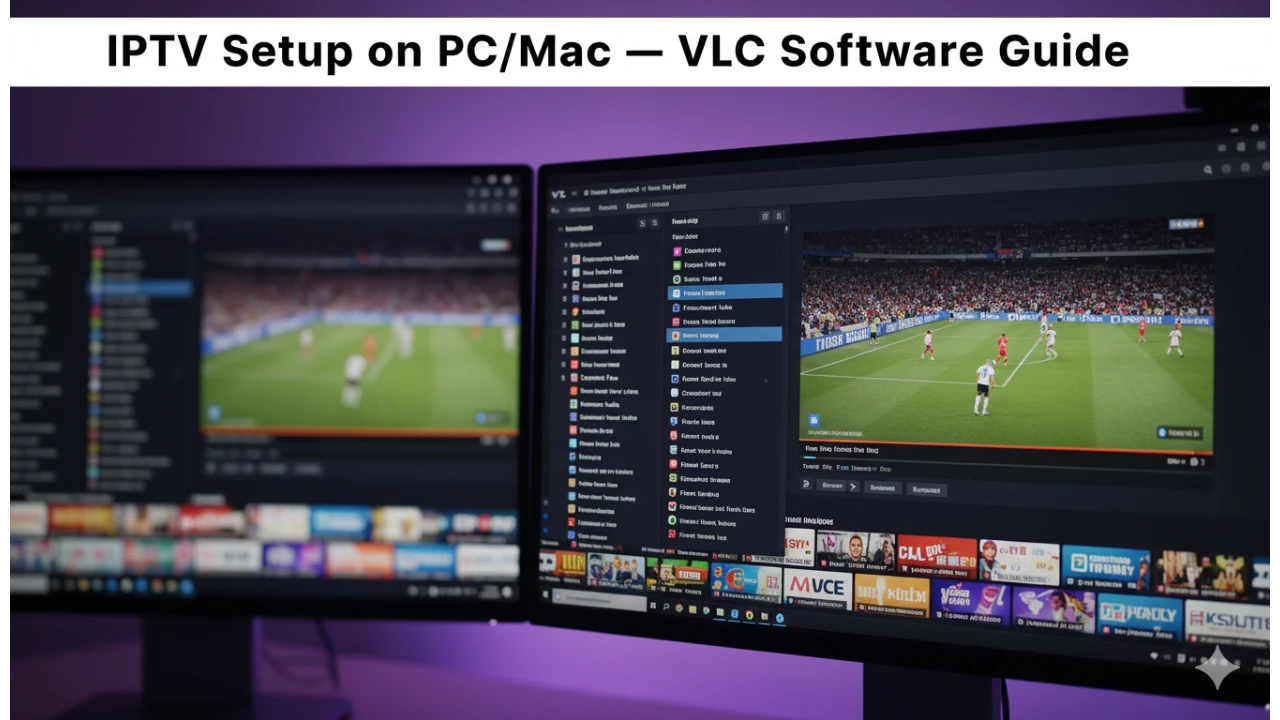
Install IPTV on PC/Mac (VLC Software)
Watching IPTV on PC or Mac is surprisingly straightforward when you’re using VLC Media Player, and you won’t need any fancy technical knowledge to get started. VLC is a free, open-source media player that works brilliantly across Windows, macOS, and Linux, making it one of the most versatile tools for streaming your favorite channels right from your computer. All you really need is VLC installed, a reliable IPTV subscription that provides an M3U playlist, and a decent internet connection to enjoy thousands of channels without additional hardware.
This guide walks you through every step of installing and configuring IPTV on your PC or Mac using VLC software. Whether you’re new to IPTV service options or you’ve been thinking about cutting the cord for a while, this tutorial breaks down the entire process in plain English so you can start streaming in minutes.
Why Use VLC for IPTV Streaming
VLC Media Player has earned its reputation as the go-to choice for IPTV enthusiasts, and there’s good reason for that. Unlike proprietary apps that might lock you into specific platforms, VLC supports virtually every operating system—Windows, Mac, Linux, Android, and iOS—giving you real flexibility no matter what device you’re using.
The best part? You don’t need to install multiple programs or pay for additional software. Once you’ve got VLC and your IPTV subscription with an M3U playlist, you’re basically ready to go. The setup process is genuinely simple, even if you’ve never dabbled with streaming technology before. Plus, VLC handles a massive range of video formats and streaming protocols without breaking a sweat, which means fewer headaches when channels use different encoding standards.
What You’ll Need Before Getting Started
Before diving into the installation, let’s make sure you’ve got everything lined up. First, you’ll need a computer running Windows, macOS, or Linux—pretty much any modern PC or Mac will work just fine. Second, grab the latest version of VLC Media Player from the official VideoLAN website if you haven’t installed it already.
Next up, you’ll need an IPTV subscription from a reputable provider. Your provider should give you an M3U playlist file or a direct URL that links to your channel list. This M3U file is essentially the key that unlocks access to all your channels—it’s a simple text file containing URLs that point to live streams. Finally, make sure your internet connection is stable and reasonably fast; buffering issues usually stem from slow or unstable connections rather than VLC itself.
. Fast Tutorial to Install IPTV on PC/Mac .
Use this fast tutorial to set up IPTV on Kodi and load your playlist effortlessly using the PVR Simple Client in just a few steps.
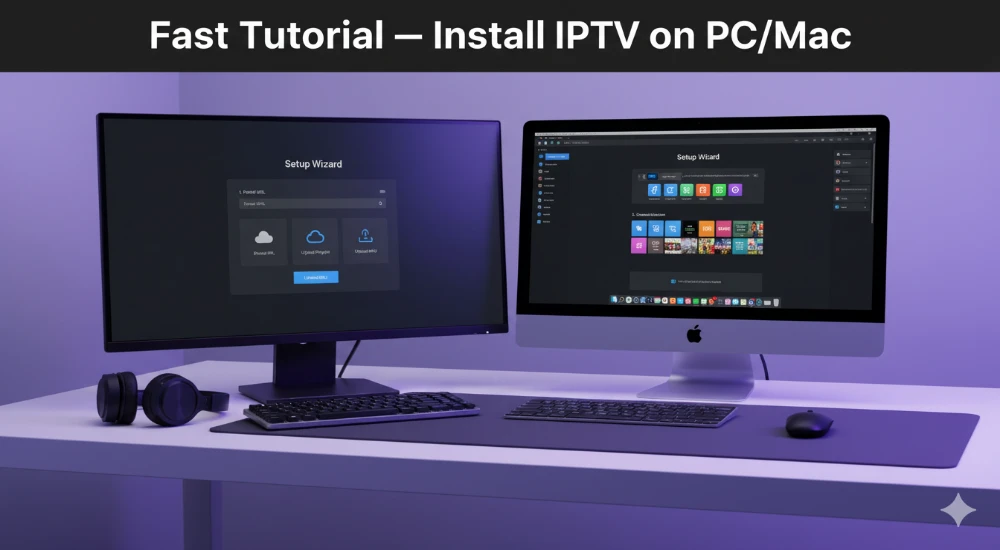
1- Download VLC ( Download URL https://www.videolan.org/vlc/index.html)
2 – Open VLC Player
3- Go to Media -> Open Network stream.
4- Add your iptv Subscription URL we sent to you and press play
5- Wait till all the Channels load (this may take some time)
Choose a Channel and enjoy the show
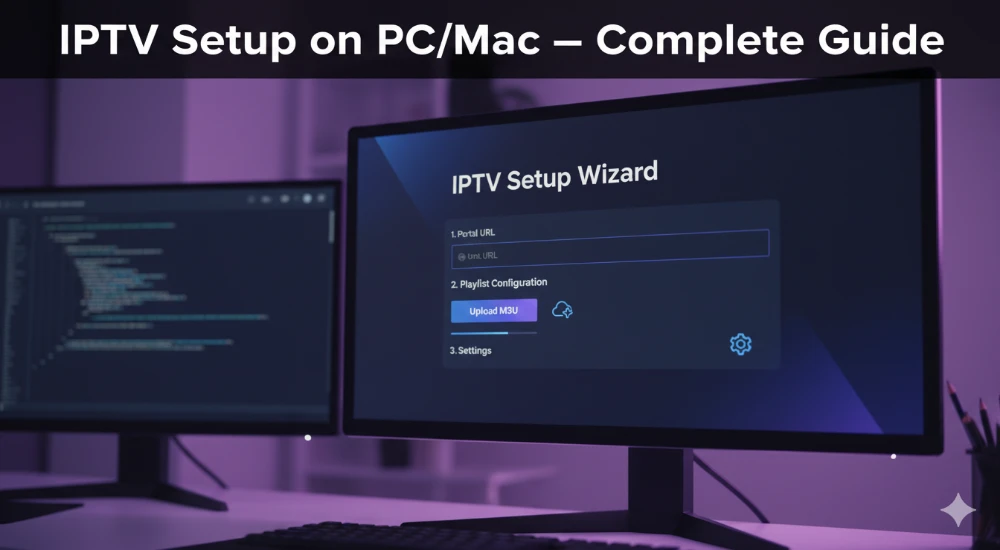
. Complete Guide To Install IPTV on PC/Mac .
This complete guide walks you through installing IPTV on your PC or Mac, adding your playlist, and getting smooth channel streaming in just a few minutes.
Downloading and Installing VLC Media Player
For Windows Users
Head over to the official VideoLAN website (videolan.org) and you’ll immediately see the orange “Download VLC” button prominently displayed. Click that button, and the site automatically detects your operating system and downloads the correct version for Windows. Once the .exe file finishes downloading, double-click it to launch the installation wizard.
The installation process is pretty straightforward—just follow the on-screen prompts and stick with the default settings unless you have specific preferences. The whole thing takes just a few moments, and when it’s done, you can launch VLC from your Start menu or the desktop shortcut that gets created automatically.
For Mac Users
Mac users follow essentially the same process. Visit videolan.org and click the “Download VLC” button, which will grab the macOS version. After the download completes, open the .dmg file and drag the VLC icon into your Applications folder. From there, you can launch VLC anytime by opening it from your Applications directory or searching for it with Spotlight.
Getting Your IPTV M3U Playlist
Your M3U playlist is what connects VLC to your IPTV channels, so this step matters. When you subscribe to an IPTV service, your provider should send you either an M3U file to download or a direct URL that points to your playlist. Some providers send this information via email, while others give you access through a customer portal or dashboard.
If you receive an M3U file, save it somewhere easy to find on your computer—your desktop or a dedicated folder works well. If your provider gives you a URL instead, copy that link and keep it handy because you’ll need to paste it into VLC in just a moment. Make sure you’re getting your playlist from a legitimate, trustworthy IPTV provider to avoid service interruptions or security concerns.
Step-by-Step Guide to Set Up IPTV on VLC
Opening VLC Media Player
Launch VLC by double-clicking its icon on your desktop or finding it in your applications menu. The main VLC interface should open up, showing its familiar orange traffic cone logo and clean, uncluttered layout.
Accessing the Network Stream Option
Look at the menu bar at the top of VLC and click on “Media” (on Windows) or “File” (on Mac). From the dropdown menu that appears, select “Open Network Stream”. You can also use the keyboard shortcut Ctrl+N (Windows) or Cmd+N (Mac) to open this option faster.
A new window will pop up with fields for entering network information. This is where you’ll add your IPTV playlist.
Adding Your M3U Playlist or URL
Now you’ve got two options depending on what your IPTV provider gave you. If you have an M3U file saved on your computer, click the “File” or “Add” button in the network stream window and navigate to where you saved the M3U file. Select it and click “Open”.
If your provider gave you an M3U URL instead, simply paste that URL directly into the “Network URL” field in the window. Double-check that you’ve copied the entire URL correctly, because even a small typo will prevent the playlist from loading.
Starting Your IPTV Stream
Once you’ve added your M3U file or pasted your URL, click the “Play” button at the bottom of the network stream window. VLC will take a few seconds to connect to the IPTV server and load your channel list. Don’t worry if it takes a moment—larger playlists with hundreds or thousands of channels need a bit more time to load.
After the playlist loads, you should see your available channels appear in VLC’s playlist panel, which is usually on the right side of the interface. Click on any channel to start streaming immediately.
Browsing and Managing Your IPTV Channels
Once your channels are loaded, you can browse through them using VLC’s playlist feature. If the playlist panel isn’t visible, press Ctrl+L (Windows) or Cmd+L (Mac) to open it. The panel displays all your channels organized by category if your M3U file includes that information.
You can scroll through the list and click on any channel to switch to it. Some M3U playlists organize channels into folders by category—sports, movies, news, international channels, etc.—which makes finding what you want much easier.
To save your playlist for future use, right-click in the playlist panel and select “Save Playlist to File”. Name your playlist and save it somewhere memorable. This way, you can quickly reload your channels next time without re-entering the URL or file path.
Optimizing VLC Settings for Better IPTV Performance
While VLC works great out of the box, tweaking a few settings can significantly improve your streaming experience, especially if you’re dealing with buffering or lag.
Adjusting Network Cache Settings
Buffering issues usually come down to network cache settings. Open VLC’s preferences by clicking “Tools” and then “Preferences” (or press Ctrl+P). At the bottom left, switch from “Simple” to “All” to access advanced settings.
Navigate to “Input / Codecs” in the left sidebar. Look for the “Network caching” field, which is measured in milliseconds. The default is usually around 1000ms (one second), but if you’re experiencing buffering, try increasing this to 3000ms or even 60000ms (one full minute) for more stable playback. Keep in mind that higher cache values reduce buffering but create a slight delay when you skip forward or backward in a stream.
Other Performance Tweaks
While you’re in the advanced settings, consider enabling hardware-accelerated decoding if your computer supports it. This offloads video processing to your graphics card, which can improve performance especially with HD or 4K streams. You’ll find this option under “Input / Codecs” as well.
Make sure your internet connection is stable and fast enough for the quality you’re streaming. HD channels typically need at least 5-10 Mbps, while 4K streams require 25 Mbps or more. If you’re still having issues, contact your IPTV provider—sometimes the problem is on their end rather than yours.
Troubleshooting Common Issues
Playlist Won’t Load
If VLC refuses to load your M3U playlist, first double-check that you’ve entered the URL correctly or selected the right file. Even a single character mistake will prevent it from working. Make sure your internet connection is active and stable. Try pasting the URL into a web browser to see if it opens—if it doesn’t work there, the problem is likely with the URL itself rather than VLC.
Channels Keep Buffering
Buffering usually points to either network issues or cache settings that are too low. First, increase VLC’s network cache as described above. If that doesn’t help, check your internet speed and make sure other devices aren’t hogging bandwidth. You might also want to contact your IPTV provider to see if their servers are experiencing problems.
No Sound or Video Issues
If you’re getting video but no audio (or vice versa), the stream might be using a codec that VLC isn’t handling correctly. Try right-clicking on the channel and selecting different audio or video tracks from the menu. If that doesn’t work, the issue might be with the IPTV stream itself rather than VLC.
Install IPTV on Mac-Specific Tips
Mac users occasionally run into permission issues when first launching VLC, especially on newer macOS versions. If macOS warns you that VLC is from an unidentified developer, right-click the VLC icon and select “Open” rather than double-clicking—this gives you the option to override the security warning.
The process for adding M3U playlists on Mac is identical to Windows, but remember that Mac uses “File” in the menu bar instead of “Media”. All the same network stream options are available, just accessed through slightly different menu names.
Choosing a Reliable IPTV Service
Your streaming experience depends heavily on choosing a quality IPTV subscription. Reputable providers offer extensive channel lineups, reliable uptime, and proper customer support. Look for services that advertise 99% uptime or better and provide responsive support when issues arise.
Many top providers in 2025 offer thousands of live channels plus on-demand content libraries. Features like anti-freeze technology, 4K streaming support, and compatibility across multiple devices add real value. Before committing to a long-term subscription, take advantage of free trials if available—most legitimate providers offer them so you can test the service first.
Pricing varies widely, but quality services typically start around $15 per month, with better rates available on quarterly or annual plans. Be wary of providers that seem too good to be true—if someone’s offering 100,000 channels for $5 a month, they’re probably not delivering on that promise.