How To Install IPTV on Android (Smartphones, Android Box)
So you’ve heard about IPTV and want to install IPTV on Android devices—whether that’s your smartphone, tablet, or Android TV box? You’re in the right place. Installing IPTV on your Android device isn’t complicated once you know the steps, and you’ll be streaming live TV, sports, movies, and shows faster than you think.
What You Need Before You Start
Before diving into the installation, let’s cover what you’ll actually need. First, you’ll want a stable internet connection—preferably 30-40 Mbps for smooth 4K streaming, though lower speeds work fine for HD content. You’ll also need an active IPTV subscription from a provider, which will give you login credentials like an M3U URL or Xtream Codes API details.
. Fast Tutorial to Install IPTV on Android .
Step 1: Download The IPTV Smarters App APK
( Click Here To Download The App )
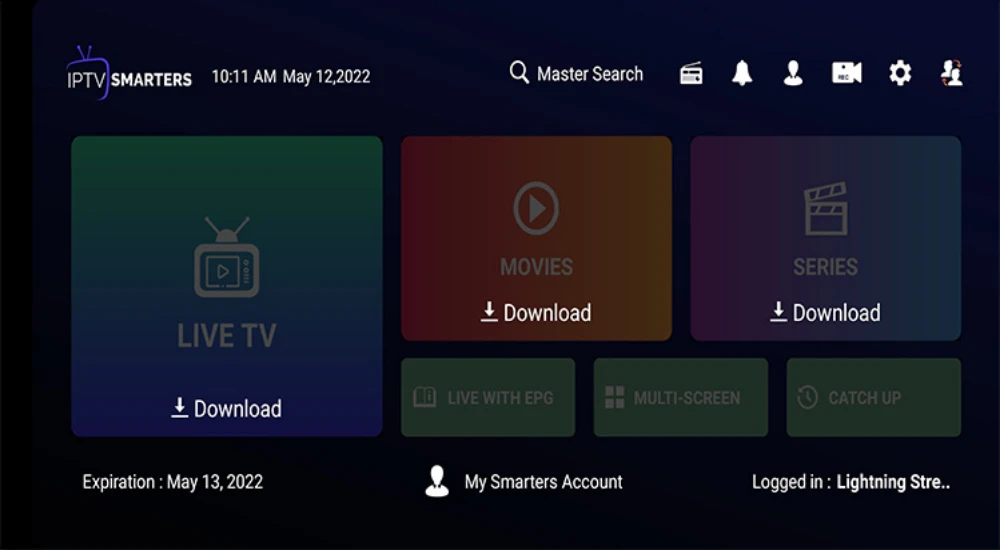
Step 2: After Downloading The App, Open It Click
“Login With Xtream Codes API”
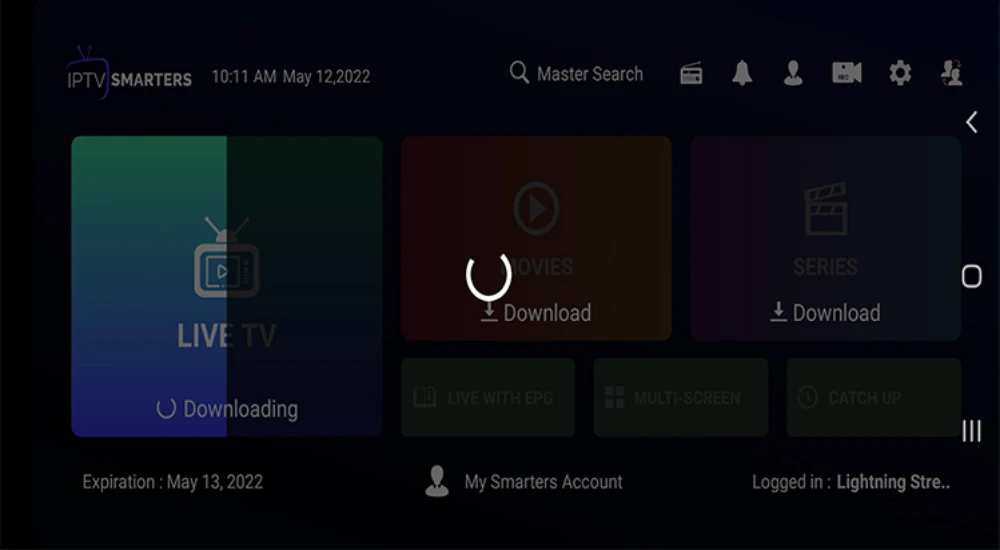
Step 3: Enter Login Details That Was Emailed To You, Then Click Add User.
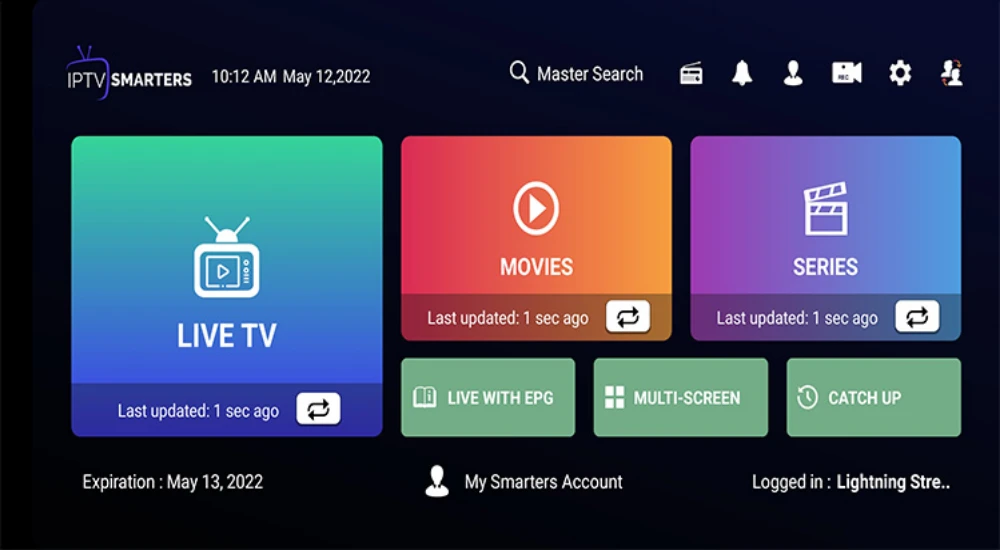
Step 4: Click Through Live, Movies And Series In Order To Refresh The Content.
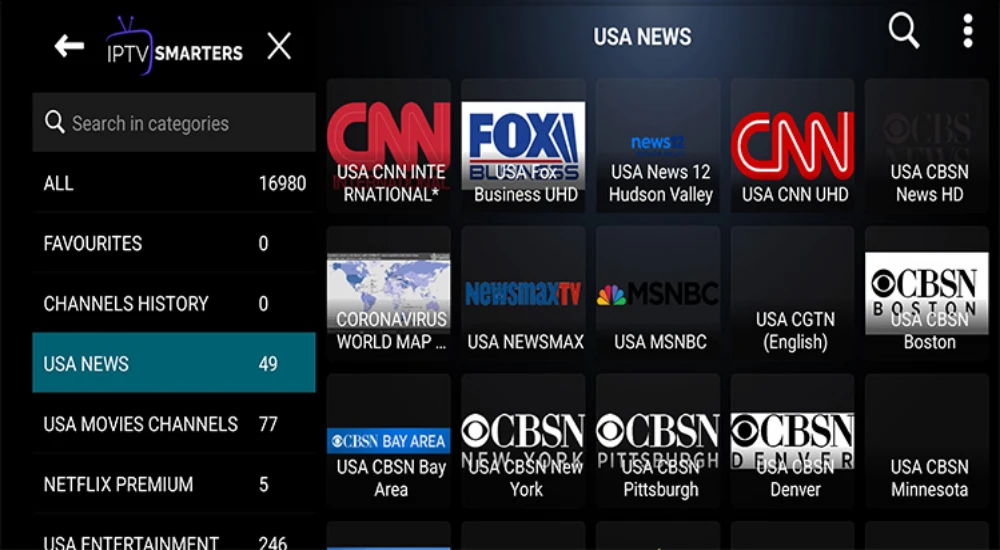
Step 5: After The Refresh, Click The Category You Would Like To Watch.
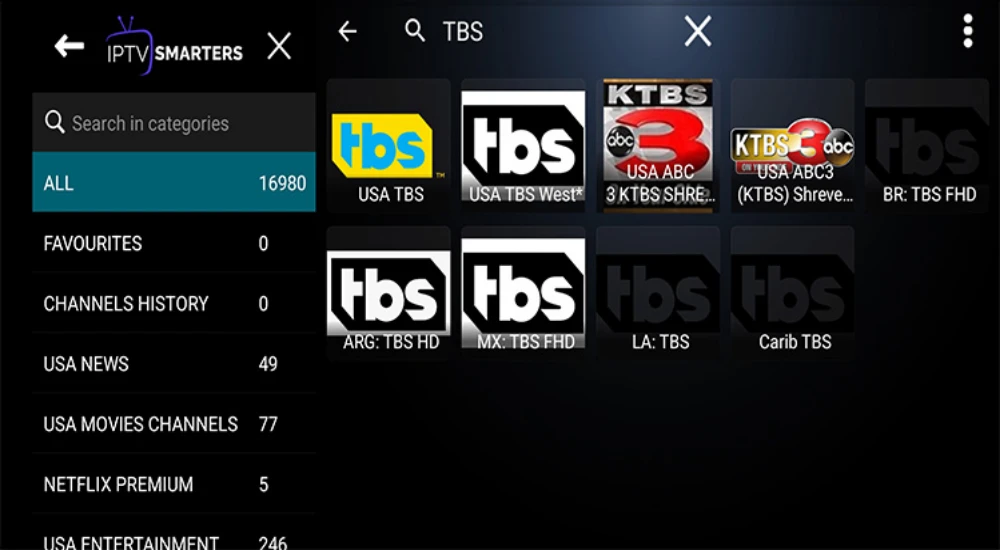
Step 6: Start Browsing And Enjoy Thousands Of Channels, Movies And Series. (Under Live TV, Click All, Use The Upper Right Hand Corner Search To Look Up All Your Favorite Channels)
. Complete Guide to Install IPTV on Android .
Best IPTV Apps for Android Devices
You’ve got plenty of options when it comes to IPTV apps, but some clearly stand out. IPTV Smarters Pro is arguably the most beginner-friendly choice, offering support for Xtream Codes API, M3U URLs, multi-screen viewing, and parental controls. It works seamlessly on smartphones, tablets, and Android TV boxes.
TiviMate IPTV Player is another fan favorite, especially for Android TV boxes. It’s got a polished interface, robust Electronic Program Guide (EPG), multi-playlist support, and even lets you record live TV with the premium version. Other solid options include OTT Navigator, XCIPTV Player, and Perfect Player—all lightweight and reliable.
For this guide, we’ll focus primarily on IPTV Smarters Pro since it’s the most versatile and widely compatible option across all Android devices.
Installing IPTV Smarters Pro on Android Smartphones
Using the Google Play Store
The easiest way to set up IPTV on your Android phone is through the Google Play Store. Open the Play Store app, tap the search bar, and type “IPTV Smarters Pro” or “Smarters Player Lite”. Select the official app from the search results—look for the orange TV logo icon—and tap “Install”.
The app is roughly 20-30 MB and should download within 30-90 seconds depending on your connection. Once installed, tap “Open” to launch the app. You’ll be prompted to grant storage and network permissions, which you should accept so the app can save your settings and stream content.
Sideloading the APK File
If you can’t find IPTV Smarters Pro in your region’s Play Store, you can sideload the APK file. Open your web browser and visit a trusted APK site like APKPure.com, then search for “IPTV Smarters Pro”. Download the APK file to your device.
Before installing, head to your phone’s Settings > Security and enable “Unknown Sources” or “Install from Unknown Sources” to allow third-party app installations. Once enabled, locate the downloaded APK file in your file manager and tap it to begin installation. After installation completes, you can open the app and proceed with configuration.
How to Get IPTV Smarters Pro App on an Android TV Box
Method 1: Installing from Google Play Store
For Android TV boxes with Google Play Store access, the process is straightforward. Navigate to the Apps section on your home screen and select Google Play Store. Use the search function to find “IPTV Smarters Pro” and select the official app.
Click the “Install” button and wait for the download to complete. Once installed, you can launch the app directly from the Play Store or find it in your Apps section. Make sure to grant the necessary permissions when prompted.
Method 2: Sideloading with Downloader App
If your Android TV box doesn’t have direct Play Store access or you prefer sideloading, you’ll need to enable Developer Mode first. Go to Settings > System > About, then scroll down to “Android TV OS build” and click it seven times until you see “You are now a developer”.
Return to the home screen, go to the Apps tab, and search for the Downloader app in the Play Store. Install Downloader, then open it. In the URL field, enter the direct download link for IPTV Smarters Pro APK (often provided as https://smarters.co.com/smarterspro.apk or use Downloader code 1074220). The app will download and prompt you to install it.
Many users recommend connecting to a VPN before sideloading third-party apps to protect your privacy and data.
Configuring Your IPTV Subscription
Using Xtream Codes API
Once you’ve installed your IPTV app, launch it and you’ll see login options. If your IPTV provider gave you Xtream Codes credentials, select “Login with Xtream Codes API”. You’ll need to enter three pieces of information: your username, password, and server URL.
Your provider should have sent these details via email when you purchased your subscription. Enter them carefully—typos are the most common login issue. After entering your credentials, tap “Add User” or “Login” and the app will load your channel list.
Using M3U URL or Playlist
If your provider gave you an M3U URL instead, select “Load Your Playlist or File/URL” in the app. Paste the complete M3U link into the URL field and give your playlist a name (like “My IPTV Service”). Tap “Add” and the app will import your channels.
Some providers only offer Xtream Codes now, but you can convert these to M3U format if needed by using online conversion tools. However, most modern IPTV apps handle both formats seamlessly.
Optimizing Your IPTV Streaming Experience
Improving Connection Quality
For the best streaming experience, connection quality matters more than you’d think. If you’re using WiFi, switch to the 5.0 GHz band instead of 2.4 GHz for better speed and less interference. Even better, connect your Android TV box directly to your router using an Ethernet cable—wired connections eliminate most buffering issues.
If a wired connection isn’t possible and your WiFi signal is weak, consider using an Ethernet Over Power adapter or moving your device closer to the router. Make sure no other devices are running heavy downloads while you’re streaming.
Adjusting App Settings
Most IPTV apps let you tweak buffer settings to match your internet speed. In IPTV Smarters Pro or TiviMate, head to the settings menu and look for buffer size options. If you have fast internet (50+ Mbps), you can reduce the buffer; slower connections benefit from a larger buffer.
You can also enable external player support in many apps, which sometimes provides better codec compatibility and smoother playback. Hardware acceleration settings can help reduce strain on older devices.
Troubleshooting Common Installation Issues
App Won’t Install or Open
If the app won’t install on your smartphone, double-check that you’ve enabled “Unknown Sources” in your security settings (when sideloading). For Android TV boxes, verify you’ve enabled Developer Mode properly. Sometimes a simple device restart solves installation glitches.
If the app installs but crashes on opening, your Android version might be too old. IPTV Smarters Pro requires Android 5.0 or higher. Check for app updates or try reinstalling.
Login or Authentication Failures
Authentication problems usually stem from incorrect credentials. Verify your username, password, and server URL are exactly as your provider sent them—even spaces or capital letters matter. Confirm your IPTV subscription is still active and hasn’t expired.
If everything looks correct but you still can’t log in, contact your IPTV provider. Sometimes they need to manually reset your account or there’s scheduled server maintenance. You might also need to check if your provider has blocked certain devices or changed server addresses.
Buffering and Playback Problems
Constant buffering usually points to internet speed issues. Test your connection speed—you need at least 10 Mbps for HD and 30-40 Mbps for 4K content. Restart your router and IPTV device to clear temporary glitches.
If buffering happens only on specific channels, the problem is likely on the provider’s server end, not your device. Codec compatibility can also cause playback errors—switching to a different IPTV player app or installing additional codec packs sometimes helps. Black screens or audio distortion often indicate codec mismatches.
Using Multiple Devices with One Subscription
Many IPTV providers allow you to use your subscription on multiple devices simultaneously, though policies vary. With IPTV Smarters Pro, you can install the app on your smartphone, tablet, and Android TV box, then log in with the same credentials on each device.
Just be aware that some providers limit the number of concurrent streams—meaning you might not be able to watch on all devices at the exact same time. Check your subscription terms to see how many simultaneous connections you’re allowed. Premium apps like TiviMate support multiple playlists, letting you manage several subscriptions or providers in one interface.
Legal and Safety Considerations
While IPTV technology itself is completely legal, the legality depends on what content your provider offers. Legitimate IPTV services have proper licensing for the channels and content they stream. Free or suspiciously cheap services often operate in legal gray areas and may offer pirated content.
Using a VPN when accessing IPTV content is highly recommended for several reasons. Third-party apps often request permissions that could expose personal data, and VPNs add a layer of privacy protection. Some ISPs also throttle streaming traffic or block certain IPTV services, which VPNs can bypass .
Only subscribe to reputable IPTV providers that clearly state their licensing arrangements and offer customer support. Avoid providers that promise “every channel in the world” for $10/month—if it sounds too good to be true, it probably is.
Advanced Features Worth Exploring
Once you’ve got the basics down, IPTV apps offer some genuinely useful advanced features. Multi-screen viewing in IPTV Smarters Pro lets you watch multiple channels simultaneously—perfect for sports fans who want to follow several games at once.
Parental controls let you lock certain channels or content categories with a PIN, which is handy if kids use the same device. The catch-up feature in apps like TiviMate lets you watch shows that aired earlier in the day, essentially giving you on-demand access to live TV programming.
Many premium IPTV apps also support recording live TV, Electronic Program Guides (EPG) with detailed schedules, and Picture-in-Picture mode for multitasking. These features transform IPTV from a simple streaming solution into a full-fledged TV replacement.