
How to Install Iptv on Enigma2 Dreambox Vu+
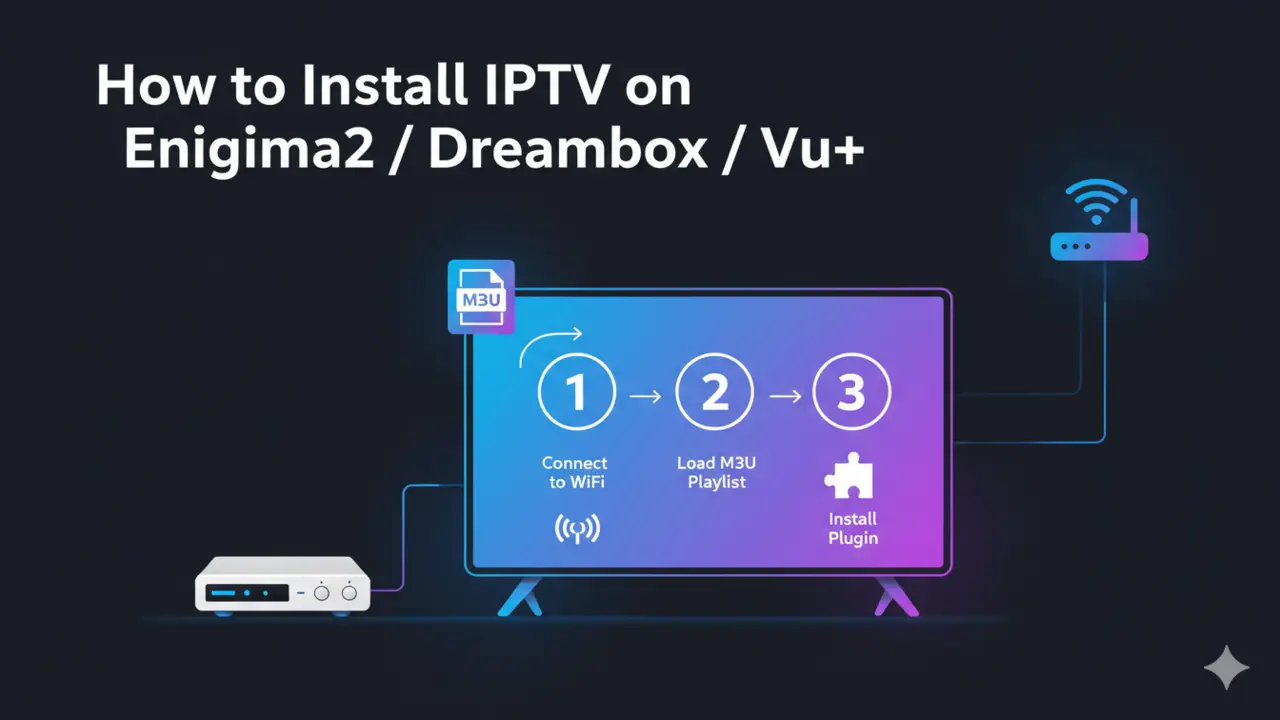
Install Iptv on Enigma2 Dreambox Vu+
If you’ve been hunting for a way to turn your Enigma2 receiver into a full-fledged streaming powerhouse, you’re in the right spot. Installing IPTV on Enigma2 Dreambox Vu+ devices isn’t rocket science, but it does require a bit of patience and the right guidance. Whether you own a Vu+ Solo, Dreambox DM800, or any other Linux-based satellite receiver running Enigma2, this guide walks you through everything you need to know.



Enigma2 is basically the operating system that powers popular satellite receivers like Vu+, Dreambox, Gigablue, and similar Linux-based boxes. When you add an IPTV subscription to these devices, you’re opening up access to thousands of live TV channels, on-demand content, and sports programming from around the globe. The setup process might seem a little technical at first, especially if you’re not familiar with FTP connections or Telnet commands, but stick with me—we’ll break it all down step by step.
What You’ll Need Before Getting Started
Before diving into the installation, gather a few essentials. You’ll need your Enigma2 receiver (obviously), a stable internet connection, and your IPTV subscription details—typically a username, password, and server URL from your IPTV service provider. You’ll also want to download specific software to your computer, like DCC (Dreambox Control Center) or Putty, both of which let you communicate with your receiver remotely.
It’s worth mentioning that there are multiple ways to set up IPTV on Enigma2 Dreambox Vu+ boxes. Some folks prefer using autoscripts via Telnet, while others go the plugin route with tools like X-Streamity or E2iPlayer. Each method has its perks, so pick whichever feels most comfortable for your tech skill level.
. Fast Guide to Install Iptv on Enigma2 Dreambox Vu+ .
Follow this fast guide to install IPTV on your Enigma2 Dreambox or Vu+ device, upload your playlist, and start watching channels in just a few quick steps.
1- Go to your Enigma2 and get your IP address
Go to Settings/Setup/System Network Device Setup Adapter Settings
And get your IP address it starts with 192.168….
2– Go to your windows PC and download Putty Software
Putty dURLload URL https://the.earth.li/~sgtatham/putty/latest/x86/putty.exe
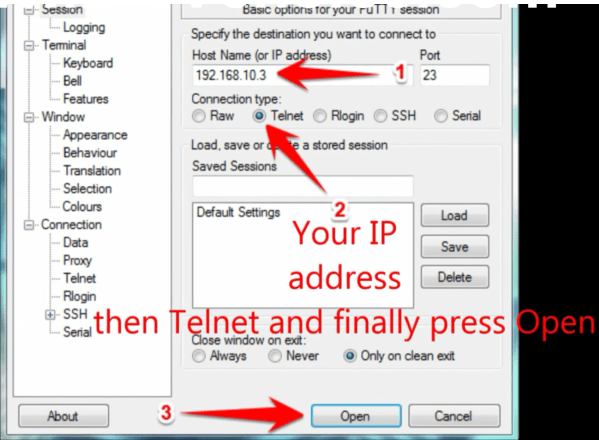
3- Open Putty add follow this steps
Add your IP address of your Enigma ( Same IP as step 1 ) Port 23 Connection type Telenet Click on open
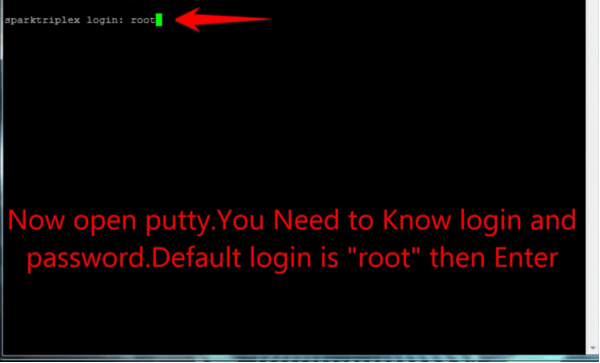
4 – Your default login and password are root
5 – Copy your URL line ( you will get it after you order your subscription )
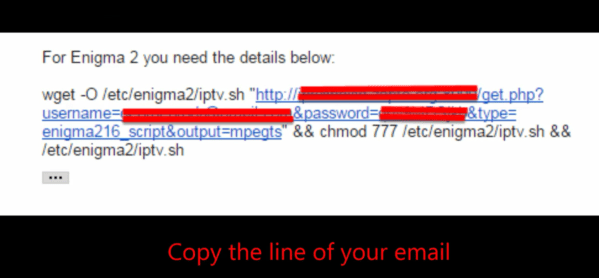
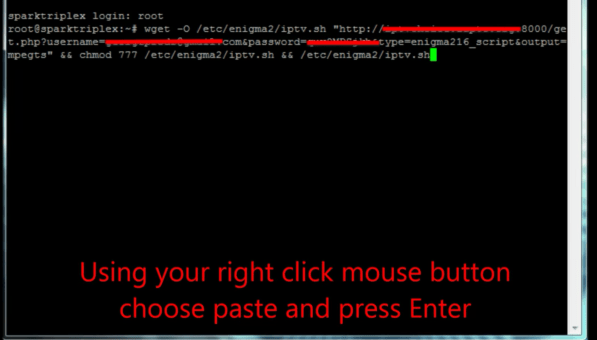
6 – Use RIGHT CLICK MOUSE BUTTON after you enter your line press ENTER
7– Type reboot and your device will restart
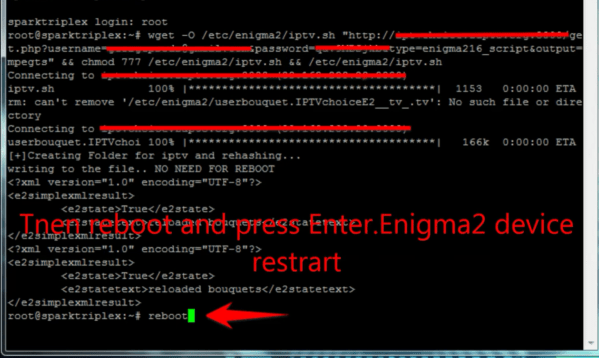
Now you will find IPTV folder, all IPTV channels are inside your IPTV folder
. Complete Guide to Install Iptv on Enigma2 Dreambox Vu+ .
This complete guide shows you how to install IPTV on Enigma2 devices like Dreambox and Vu+, from adding your m3u/bouquet files to activating plugins for smooth channel playback.
Method 1: Installing IPTV Using DCC and Telnet
This is probably the most popular method among Enigma2 users. First, download and install the DCC software on your Windows PC or laptop. Mac users can use alternatives like iDreamX or run Windows applications through WineBottler if needed.
Once DCC is installed, launch the program and connect to your receiver. You’ll need to enter your receiver’s local IP address, which you can usually find in your box’s network settings menu. The default login credentials are typically “root” for both username and password, though some receivers leave the password field blank—try both if one doesn’t work.
After successfully connecting, navigate to the Telnet tab inside DCC. This is where things get interesting. Your IPTV provider should’ve sent you an installation script (sometimes called an autoscript) when you purchased your IPTV subscription. Copy that entire script, right-click in the black Telnet window inside DCC, and paste it—you can also use the middle clipboard icon at the top of the screen.
Hit Enter and let the script run. You’ll see lines of code flying by as the installation progresses. Don’t panic—that’s totally normal. Once the process completes (usually takes a minute or two), restart your receiver. When it boots back up, head to your “Favorites” or “Bouquets” menu, and you should see a new channel list with your IPTV service name.
Method 2: Manual M3U File Installation via FTP
If you prefer a more hands-on approach, you can manually upload your IPTV channel list using FTP. This method gives you complete control over your bouquet files and works great if you’ve received an M3U playlist from your provider.
First, connect to your Dreambox or Vu+ receiver through DCC using FTP mode instead of Telnet. Navigate through the folder structure: /etc/enigma2/. This directory contains all your channel lists and bouquet configurations.
You’ll need to upload the “userbouquets.IPTV.tv” file (or whatever your provider named it) into this enigma2 folder. Once uploaded, find the existing “bouquets.tv” file in that same directory, right-click it, and select “Edit”.
Inside this file, you’ll see several lines that look like #SERVICE 1:7:1:0:0:0:0:0:0:0:FROM BOUQUET "userbouquets.something.tv" ORDER BY bouquet. Copy any existing line, paste it at the bottom, and change the filename between the quotation marks to match your newly uploaded IPTV file—something like “userbouquets.IPTV.tv”. Save your changes, restart the receiver, and your new IPTV bouquet should appear in your channel list.
Method 3: Using Mobile Telnet on Smartphone
Don’t have access to a computer? No worries. You can actually install IPTV on Enigma2 Dreambox Vu+ receivers using just your smartphone. Download an app called “Mobile Telnet” from either the Google Play Store or Apple App Store.
Open the app and enter your receiver’s IP address to establish a connection. Log in using “root” as your username (the password is usually “dreambox” or blank). Once connected, you’ll have access to a command terminal where you can paste your IPTV autoscript directly from your provider.
After pasting the script, execute it and wait for the installation to finish. Restart your box, and you’re good to go. This method is surprisingly convenient if you’re traveling or just want a quick setup without booting up your laptop.
Method 4: X-Streamity Plugin Installation
For those who want a more user-friendly experience, the X-Streamity plugin is an absolute game-changer. This plugin is specifically designed for Xtream Codes IPTV playlists and provides a sleek interface for managing your IPTV subscription.
Start by downloading the X-Streamity .ipk or .deb installation file (depending on your Enigma2 image—OpenATV, VTi, BlackHole, OpenPLi, etc.). Install it through your receiver’s plugin menu or by uploading it via DCC.
Once installed, launch X-Streamity from your plugins menu (you can also configure it to appear in your main menu for quicker access). Hit the green button to add a new playlist. You’ll need to enter your IPTV provider’s server URL, username, and password—all details that should’ve come with your IPTV service subscription.
Press the green button again to save your playlist. The plugin will connect to your provider’s servers and download your channel list, including live streams, VOD content, and series. You’ll even see your subscription expiration date displayed in the user info screen.
Navigate to “Live Streams,” select your preferred category, and start watching. The plugin organizes everything neatly, making it incredibly easy to browse through hundreds or even thousands of channels.
Choosing the Right IPTV Service
Not all IPTV subscriptions are created equal. When shopping for an IPTV service to use with your Enigma2 device, look for providers that explicitly support Xtream Codes API or M3U playlists. Make sure they offer stable servers with minimal buffering, a good selection of channels relevant to your viewing preferences, and reliable customer support.
Some providers are geo-locked or have UK football restrictions during live matches, which can be frustrating if you’re trying to watch Premier League games. Others might require VPN usage depending on your location. Always test with a short trial period before committing to a long-term subscription.
Troubleshooting Common Installation Issues
Even with clear instructions, things don’t always go smoothly. If DCC or Dreambox Edit won’t connect to your receiver, double-check that your IP address is correct and that both devices are on the same network. Sometimes simply restarting your router or receiver can resolve connection issues.
If your autoscript fails to install, verify that you’ve copied the entire script without any missing characters. Make sure you’re using the correct login credentials—some newer receivers use different default passwords.
For X-Streamity users, if the plugin says your playlist is incompatible, it likely means your provider doesn’t use Xtream Codes API. In that case, you’ll need to switch to the manual M3U method or try a different plugin like E2iPlayer.
EPG (Electronic Program Guide) timing issues are also common. If your channel guide shows times that are several hours off, use the EPG timeshift option in X-Streamity’s settings to adjust accordingly.
Advantages of Using IPTV on Enigma2 Receivers
Once you’ve got everything set up properly, the benefits are pretty impressive. Enigma2’s Linux-based architecture makes it incredibly stable for long-term IPTV streaming. You get access to customizable channel lists, the ability to record live TV (if your receiver has storage), and integration with traditional satellite channels.
The flexibility is another huge plus. You can organize channels exactly how you want them, create custom bouquets for different family members, and even integrate catch-up TV services depending on your IPTV provider.
Plus, if you already own a Vu+ or Dreambox receiver, adding IPTV functionality is essentially free (aside from the subscription cost). You don’t need to buy a separate Android box or streaming device.
Maintaining Your IPTV Setup
After installation, keep your receiver’s firmware and plugins updated. Enigma2 images like OpenATV and VTi regularly release updates that improve stability and add new features. X-Streamity and other IPTV plugins also receive updates to maintain compatibility with provider APIs.
Periodically check your IPTV subscription status through the plugin’s user info screen to make sure you renew before it expires. Most providers send renewal reminders, but it’s easy to lose track if you’re not paying attention.
Back up your channel list configurations occasionally, especially if you’ve spent time customizing your bouquets. Use DCC’s FTP function to download your /etc/enigma2/ folder to your computer as a safety net.