












Step 1: Download The IPTV Smarters App From Apple Store Using This
URL: https://apps.apple.com/ma/app/smarters-player-lite/id1628995509?l=en-EN
OR you can search it on APP store : SMARTERS PLAYER LITE
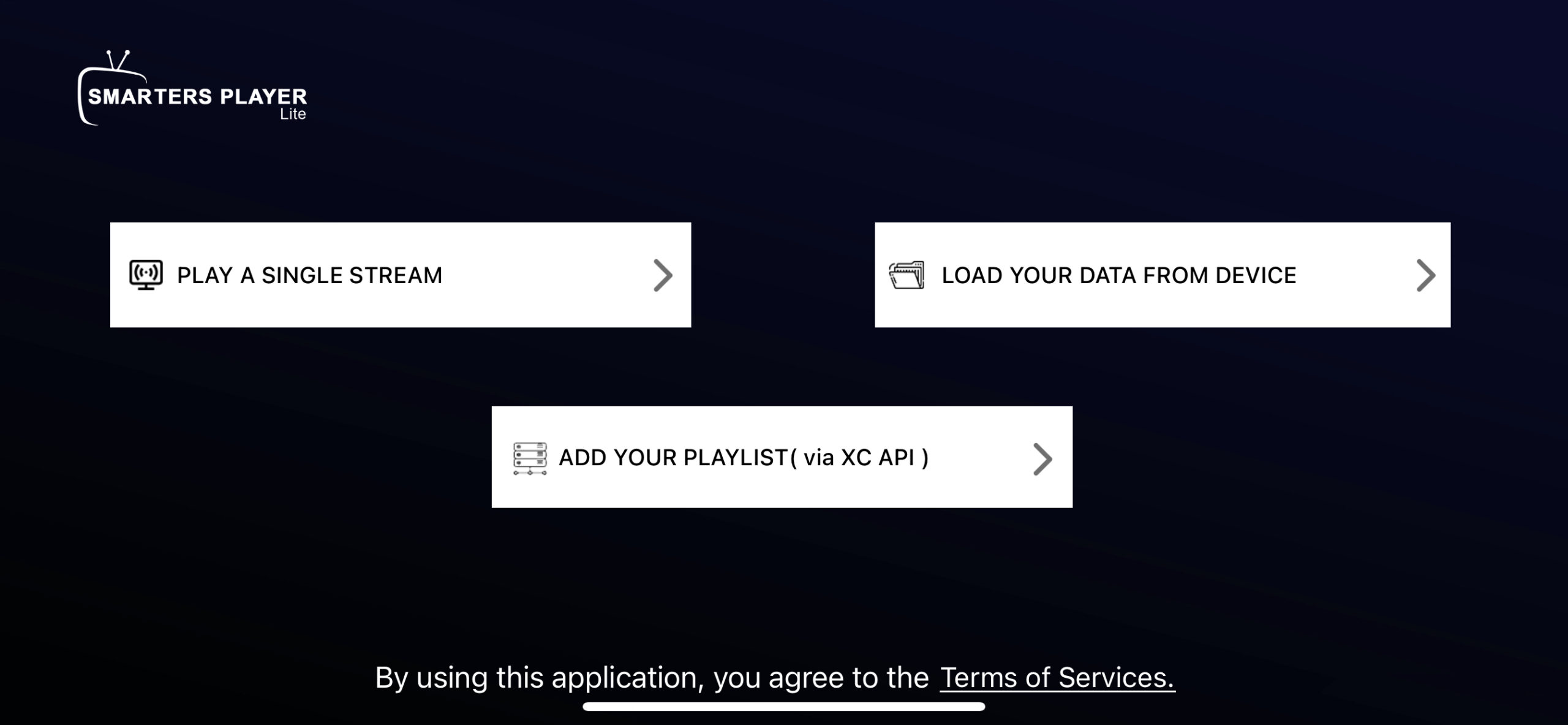
Step 2: After Downloading The App, Open It
Select “Login With Xtream Codes API”
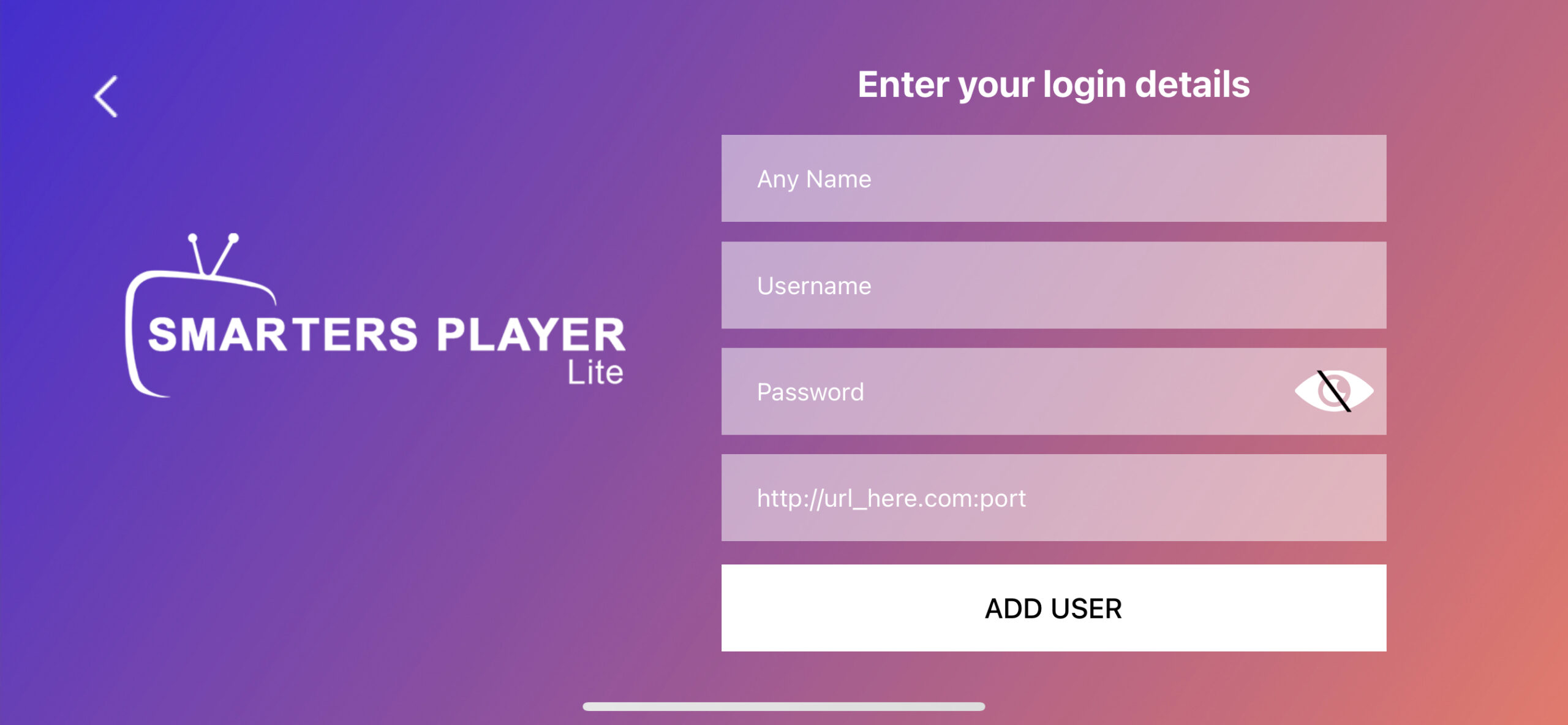
Key In Your Login Details.
Step 3: Enter The Login Details That You Got After Subscribing
With Us And Then Click On ADD USER To Go To The Next Part.
Step 4: Wait For A Few Seconds.
Step 5: Click Live TV Icon As Shown In The Image Below.

Step 6: Choose The Channel Group You Would Love To Watch
And Go To The Next Section.
Step 7: At This Point, Click On The Name Of The Channel
And Double Click On The Small Screen To Go In To Full Screen As The Last Step.
Step 8: There Is No Need Of Adding Any EPG URL.
Simply Click On Install EPG And You Are Done.
Step 1: Download The IPTV Smarters App From Your TV Store
(LG, Samsung & Others)
Step 2: After Downloading The App, Open It
Key In Your Login Details.
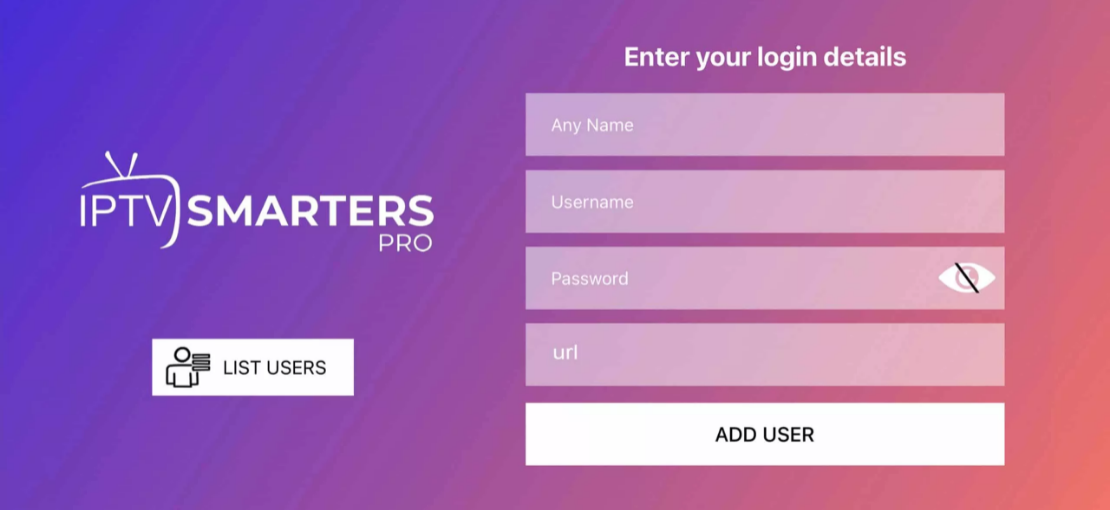
Step 3: Enter The Login Details That You Got After Subscribing
With Us And Then Click On ADD USER To Go To The Next Part.
Step 4: Wait For A Few Seconds.
Step 5: Click Live TV Icon As Shown In The Image Below Using The Red Arrow.
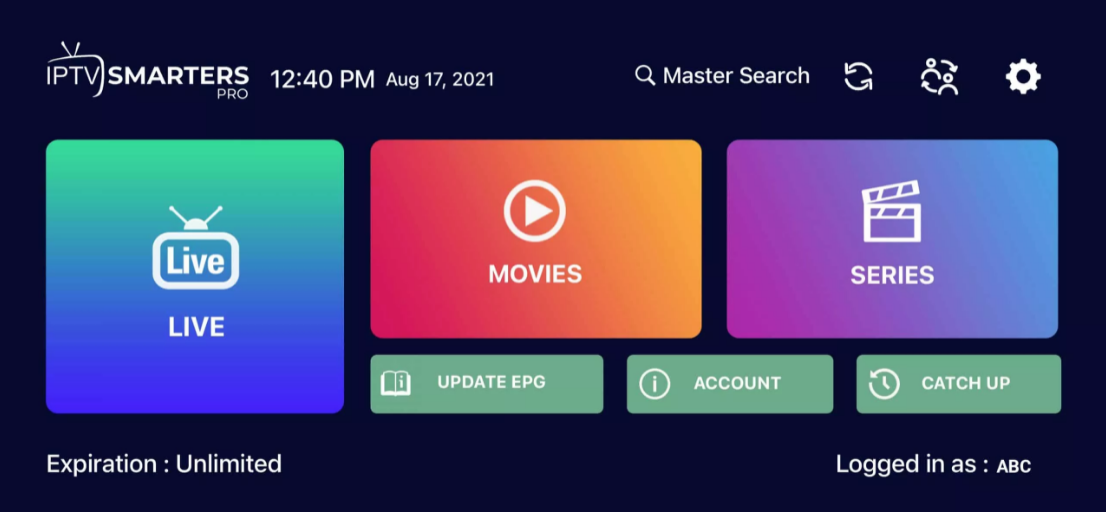
Step 6: Choose The Channel Group You Would Love To Watch
And Go To The Next Section.
Step 7: At This Point, Click On The Name Of The Channel
And Double Click On The Small Screen To Go In To Full Screen As The Last Step.
Step 8: There Is No Need Of Adding Any EPG URL.
Simply Click On Install EPG And You Are Done
Step 1: Download The IPTV Smarters App APK
( Click Here To Download The App )
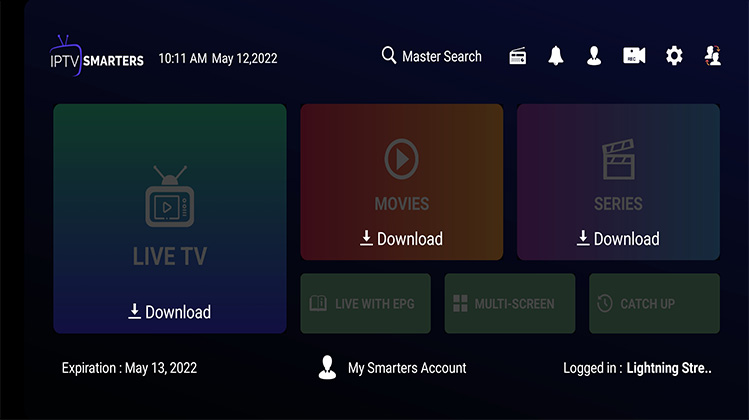
Step 2: After Downloading The App, Open It Click
“Login With Xtream Codes API”
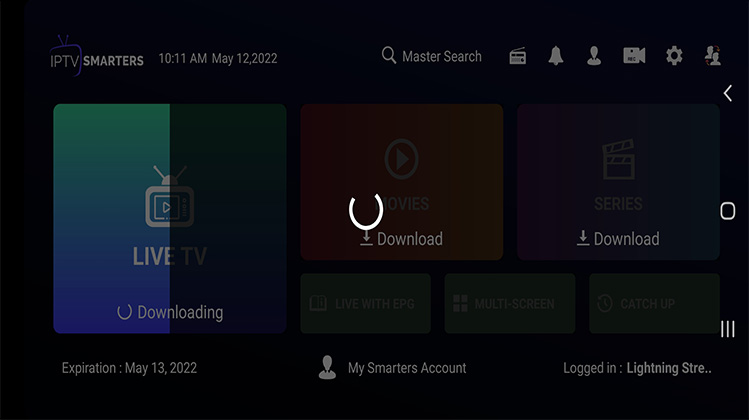
Step 3: Enter Login Details That Was Emailed To You, Then Click Add User.
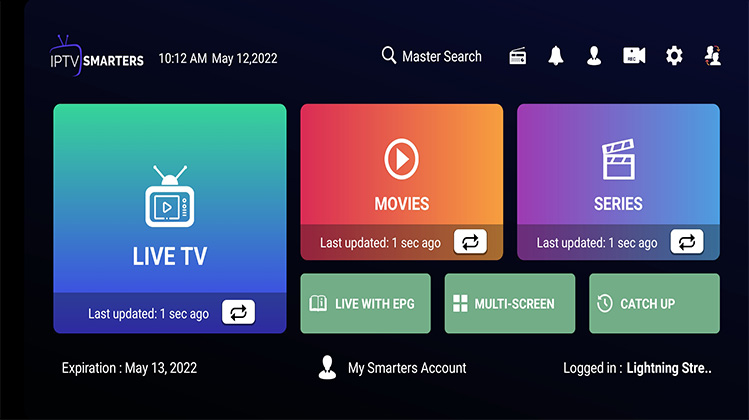
Step 4: Click Through Live, Movies And Series In Order To Refresh The Content.
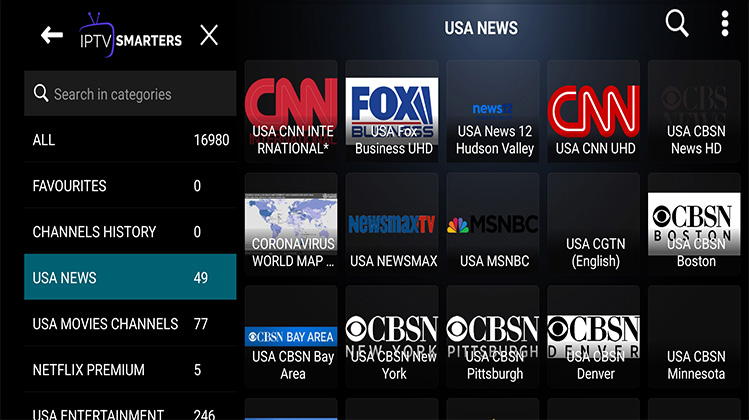
Step 5: After The Refresh, Click The Category You Would Like To Watch.
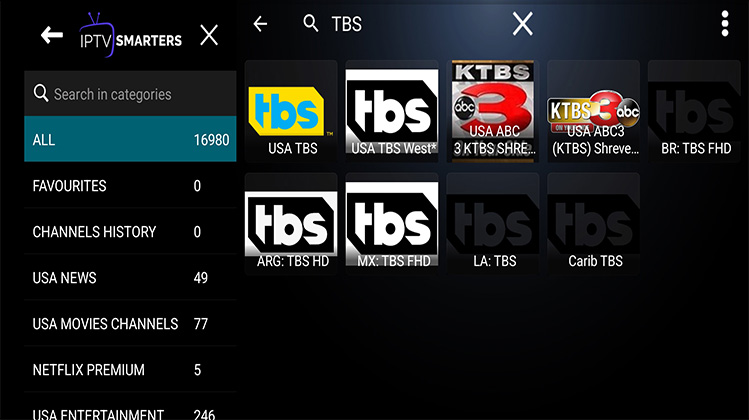
Step 6: Start Browsing And Enjoy Thousands Of Channels, Movies And Series. (Under Live TV, Click All, Use The Upper Right Hand Corner Search To Look Up All Your Favorite Channels)
- Open Kodi
- Select SYSTEM
- Select TV (or Live TV if you are on a version lower than 15.2 and if you are then consider updating)
- Select General
- Select EnabledYou will now see a pop-up saying that you have no PVR Client enabled.
- Select OK
- Scroll down and select PVR IPTV Simple Client
- Select Enable
- Select Configure
- In General select M3U PlayList URL
- Add your M3U URL into the address section
- Select OK
- Select OK again
- Reboot Kodi
- On your Home Screen, you should now see TV (or Live TV if on an older version of Kodi).
- Open that to see the live channel list
How to Setup PVR IPTV Simple Client Kodi Krypton 17
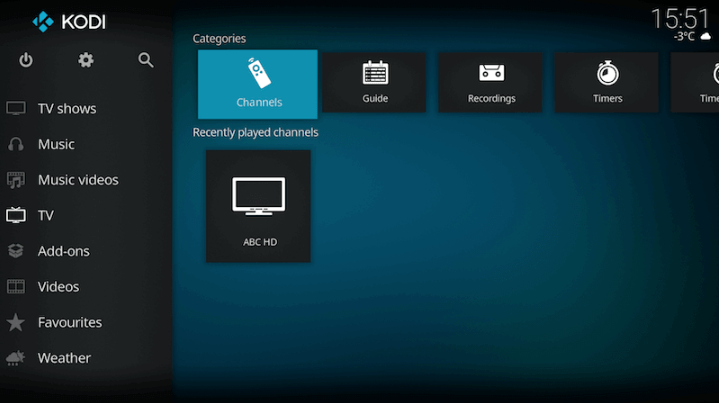
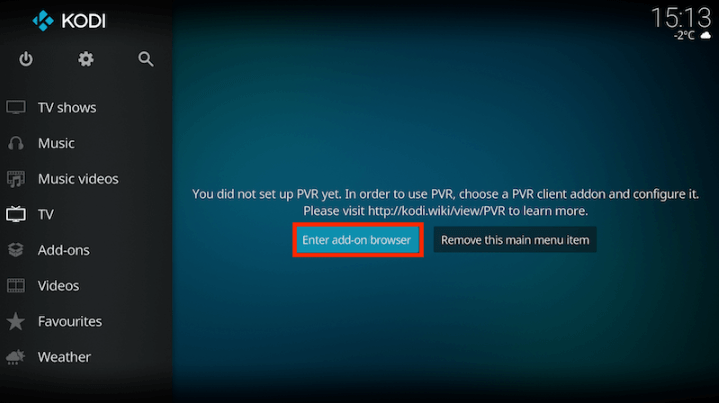
Open KodiSelect TV
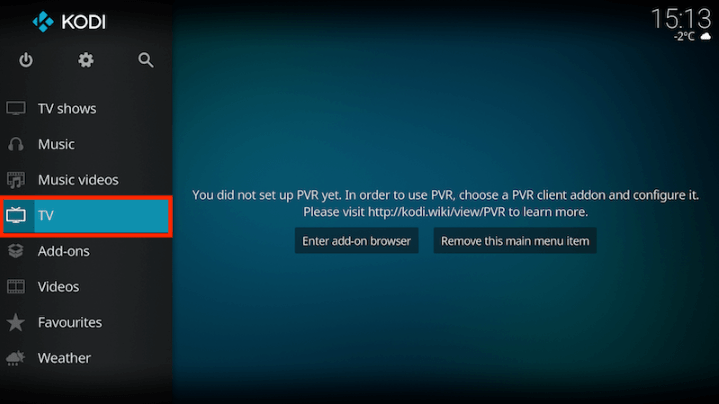
Select Enter add-on browser
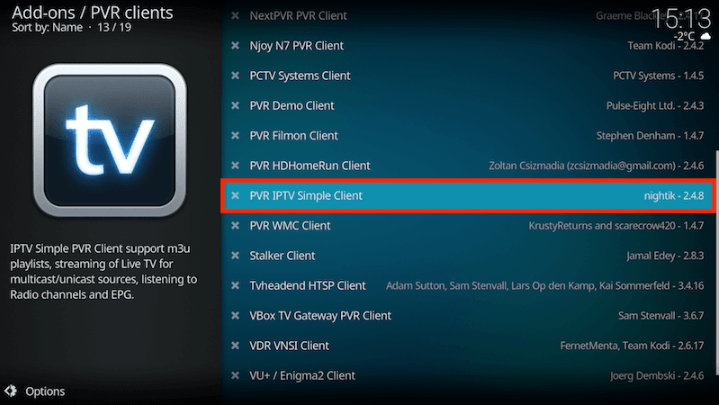
Select PVR IPTV Simple Client
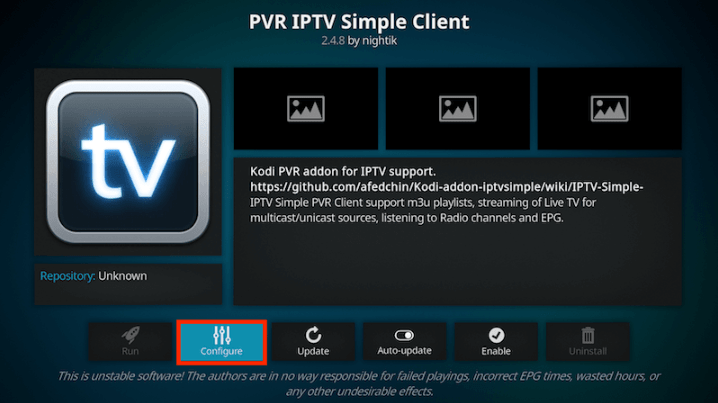
Select Configure
Select General
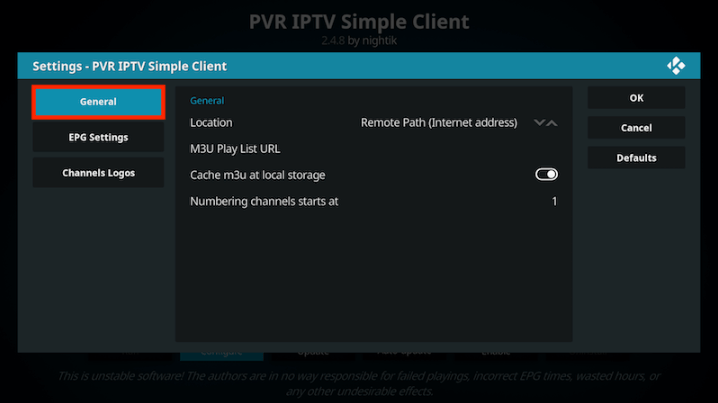
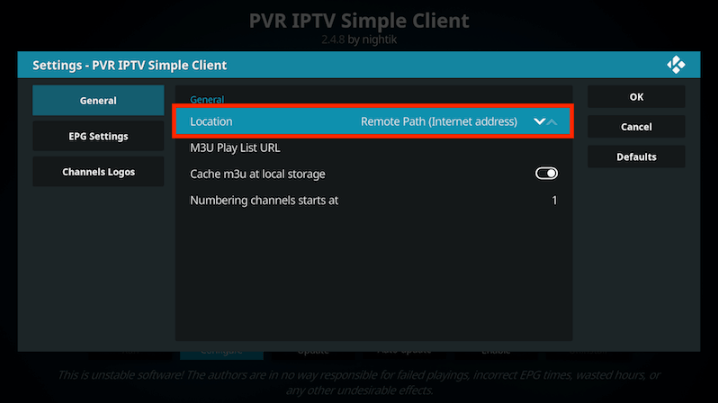
If you have your subscription m3u URL set Location to Remote Path
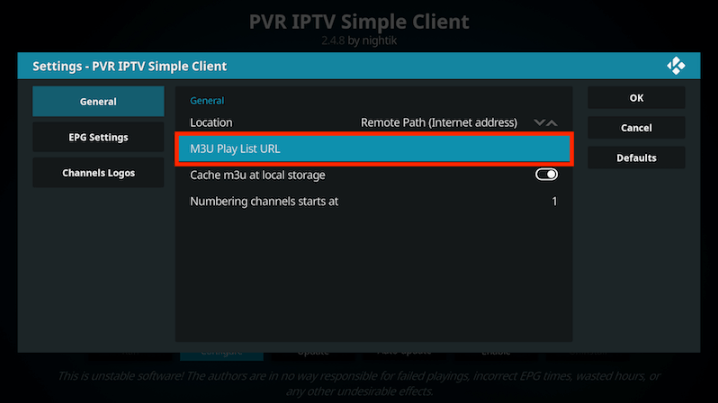
Then Select M3U PlayList URL
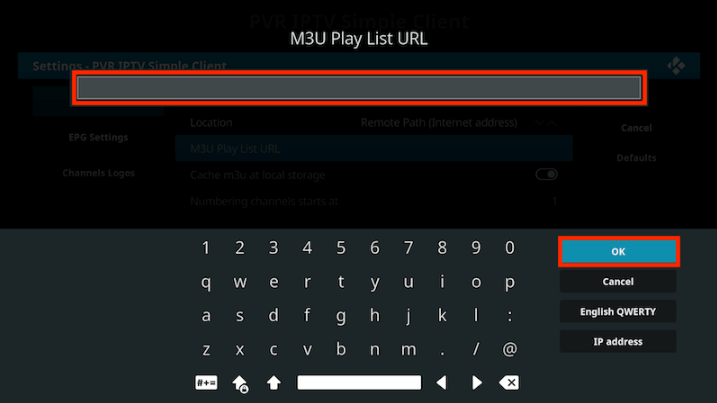
Enter the URL of your M3U PlayList and select OK
If you have an M3U text file stored locally on your network/computer/box then set the Location to Local Path (include Local Network)
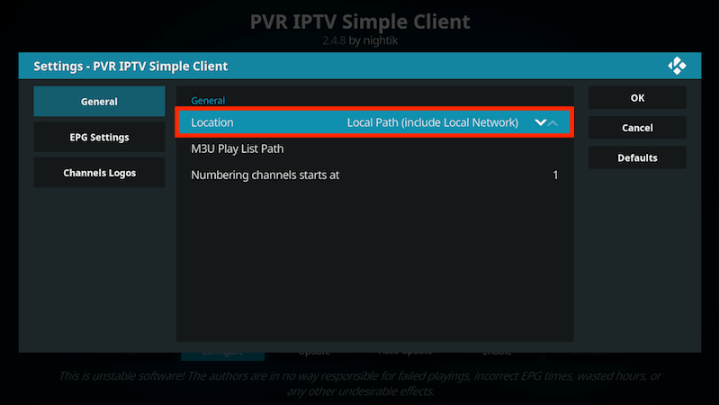
Then Select M3U PlayList URL
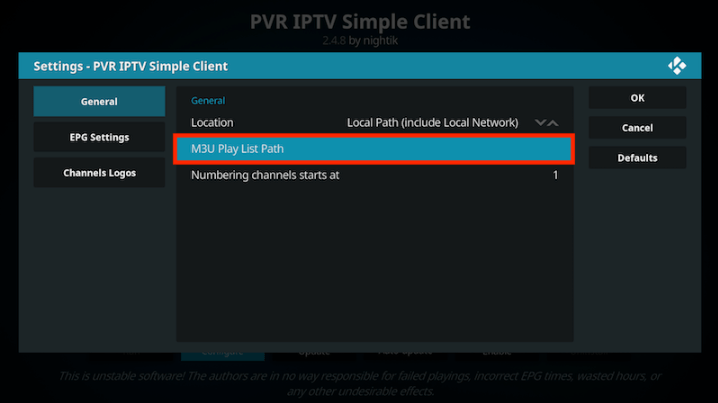
Navigate to where the file is stored and select it
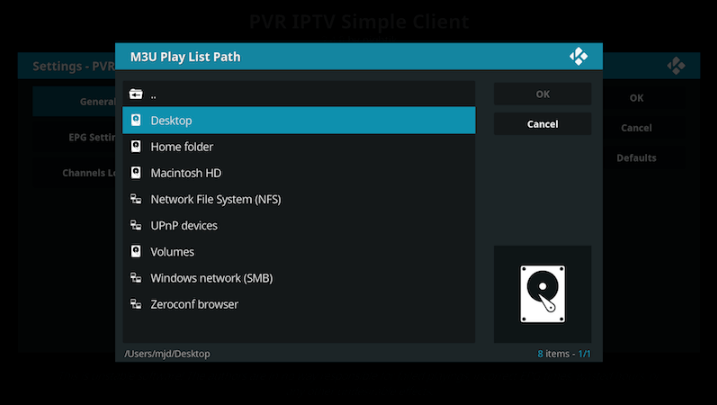
Select OK
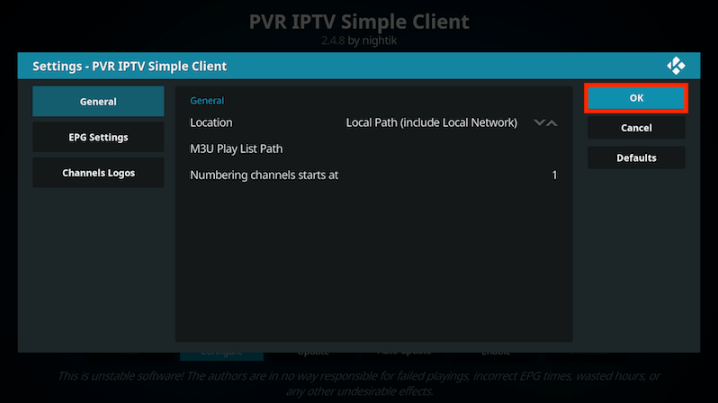
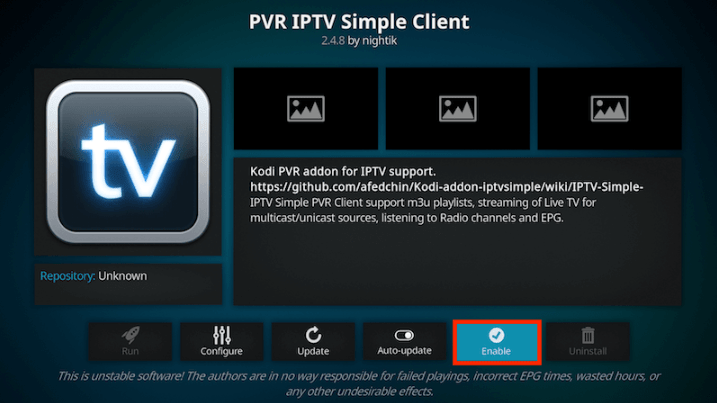
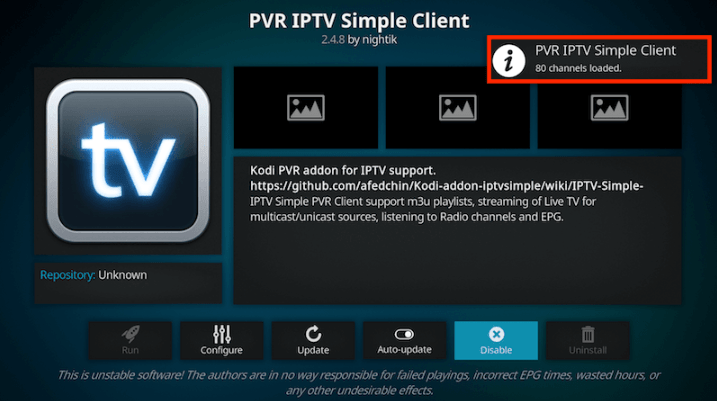
Wait for notification of channels loaded
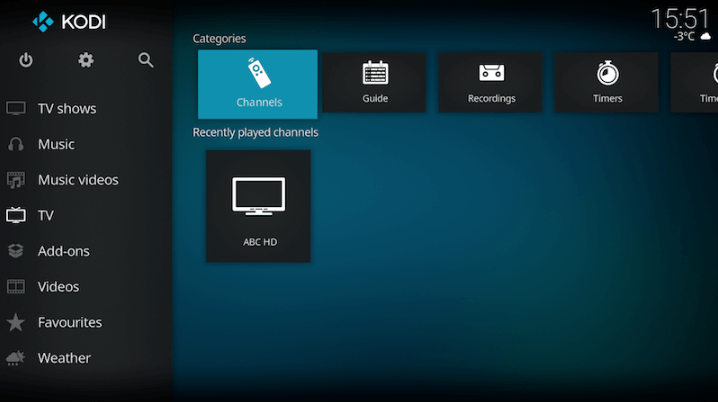
Now when you go back to the Home Screen and select TV it should look like this
Enjoy
Connect MAG DEVICE to TV and Internet. Then do as follows
- Go to: Settings—> System Settings —> Servers—>Portals
- Set Portal 1: IPTV Shop
- Set Portal 1 URL ( see your E-mail )
- Set Portal 2 Name leave this empty add this only If you order the second subscription
- Set Portal 2 URL leave this empty add this only If you order the second subscription
- Save everything
- Reboot device
- After the box is restarted, wait until the TV screen shows the channels.
This tutorial will guide you through the simple setup instruction for Openbox.
Openbox Setup Instructions:
- Open ‘Intenet Browser’.
- Copy and paste your M3U URL into the ‘Address bar’ and press ‘Enter’.
- It will ask you to either ‘save’ or ‘save as’.
- Choose ‘save as’ and change the file name to ‘IPTV ’.
- Copy the saved file from your computer to a USB stick then put the stick in the Back of the Openbox.
- On the remote press the following:
– MENU
– Network Local settings
– Network App
– IPTV
– Yellow button to read from USB
– Start Watching right after Openbox says ‘success”
Troubleshooting Openbox
If you have any problems viewing the Channels please follow this recommended fix:
Restart your Openbox and Wi-Fi Router.
This tutorial will guide you through the simple setup instruction for STB Emulator.
‘STB Emulator’ can emulate the following IPTV set-top boxes.
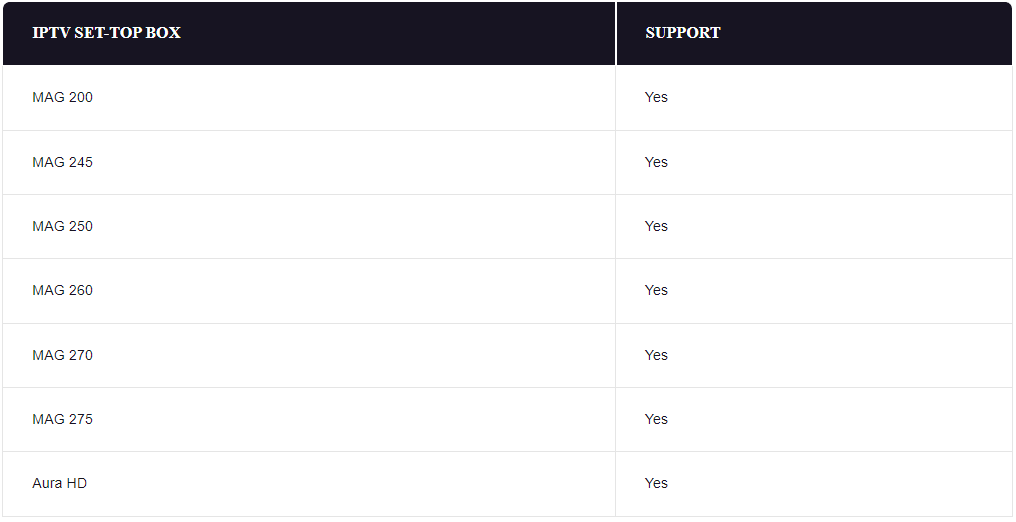
STB Emulator Setup Instructions:
- Download ‘STB Emulator’ from the Google Play Store here.
- Install and Load the ‘STB Emulator’ app and you will see your ‘MAC address’ on screen.
- Tap near the ‘Top right corner’ and then click ‘Settings’ – the 4th icon from the right.
- Tap ‘Profiles’.
- Tap ‘Test portal’ to modify the existing profile or ‘Add profile’ to start a new one.
- Tap ‘STB Model’.
- Tap ‘MAG 250’ or whichever STB you wish to emulate.
- Tap ‘Portal settings’.
- Enter your ‘Portal URL’ (Check your activation e-mail) and click OK.
- Now tap ‘Screen Resolution’.
- Choose ‘1280×720’ (You can choose higher with internet speed 16+ Mbps).
- Exit the app and restart.
- You will now see your channel list.
Troubleshooting STB Emulator
If you have any problems viewing the Channels please follow this recommended fix:
Restart your App, Device/Box, and Wi-Fi Router.
This tutorial will guide you through the simple setup instruction for Dreamlink T1, T1+, T2, T6.
Obtaining MAC address from the device:
- Let the STB Boot Up.
- Finish any update that it may find.
- It will bring you to the ‘Server menu’.
- Press the ‘Exit’ button on the remote control and click on ‘OK’.
- This will bring you to the main DOL screen, the ‘MAC address’ is in the upper right corner.
Dreamlink T1, T1+, T2, T6 Setup Instructions:
- In ‘Dreamlink On Line (DOL) go to ‘Settings’.
- Press the ‘Green’ button on your remote control to pull up the ‘Edit’ option.
- Enter your ‘Portal name’ (use for example: ‘IPTV Shop’).
- enter your ‘Portal URL’ (Check your activation e-mail).
- Confirm, restart ‘Dreamlink’ and start watching.
Troubleshooting Dreamlink T1, T1+, T2, T6
If you have any problems viewing the Channels please follow this recommended fix:
Restart your Dreamlink and Wi-Fi Router.
1- Go to your Enigma2 and get your IP address
Go to Settings/Setup/System Network Device Setup Adapter Settings
And get your IP address it starts with 192.168….
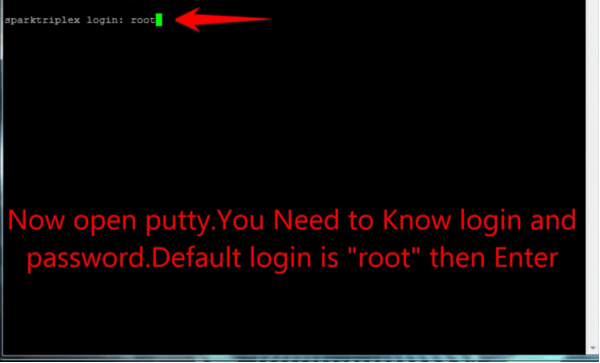
2– Go to your windows PC and download Putty Software
Putty dURLload URL https://the.earth.li/~sgtatham/putty/latest/x86/putty.exe
3- Open Putty add follow this steps
Add your IP address of your Enigma ( Same IP as step 1 ) Port 23 Connection type Telenet Click on open
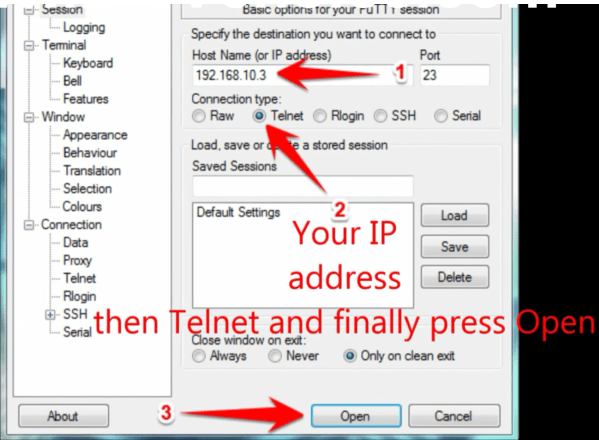
4 – Your default login and password are root
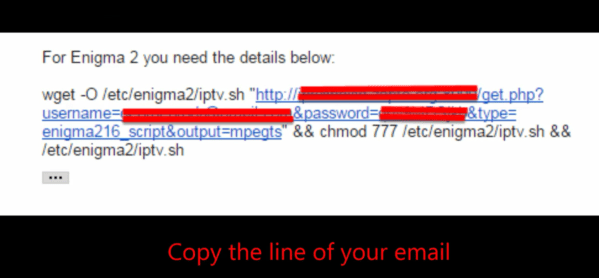
5 – Copy your URL line ( you will get it after you order your subscription )
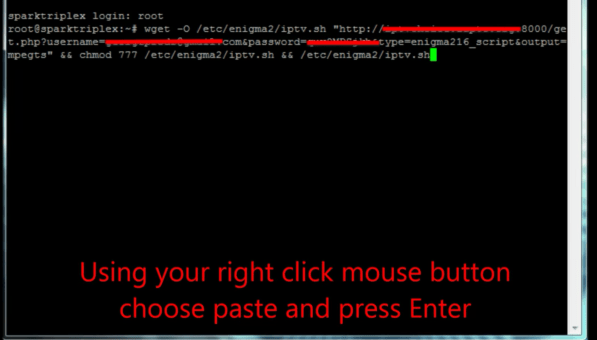
6 – Use RIGHT CLICK MOUSE BUTTON after you enter your line press ENTER
7– Type reboot and your device will restart
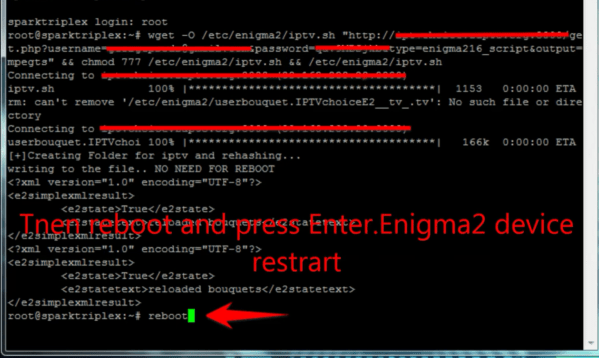
Now you will find IPTV folder, all IPTV channels are inside your IPTV folder
1- Download VLC ( Download URL https://www.videolan.org/vlc/index.html)
2 – Open VLC Player
3- Go to Media -> Open Network stream.
4- Add your iptv Subscription URL we sent to you and press play
5- Wait till all the Channels load (this may take some time)
Choose a Channel and enjoy the show