
How to Set Up IPTV on OpenBox Step-by-Step Guide 2026
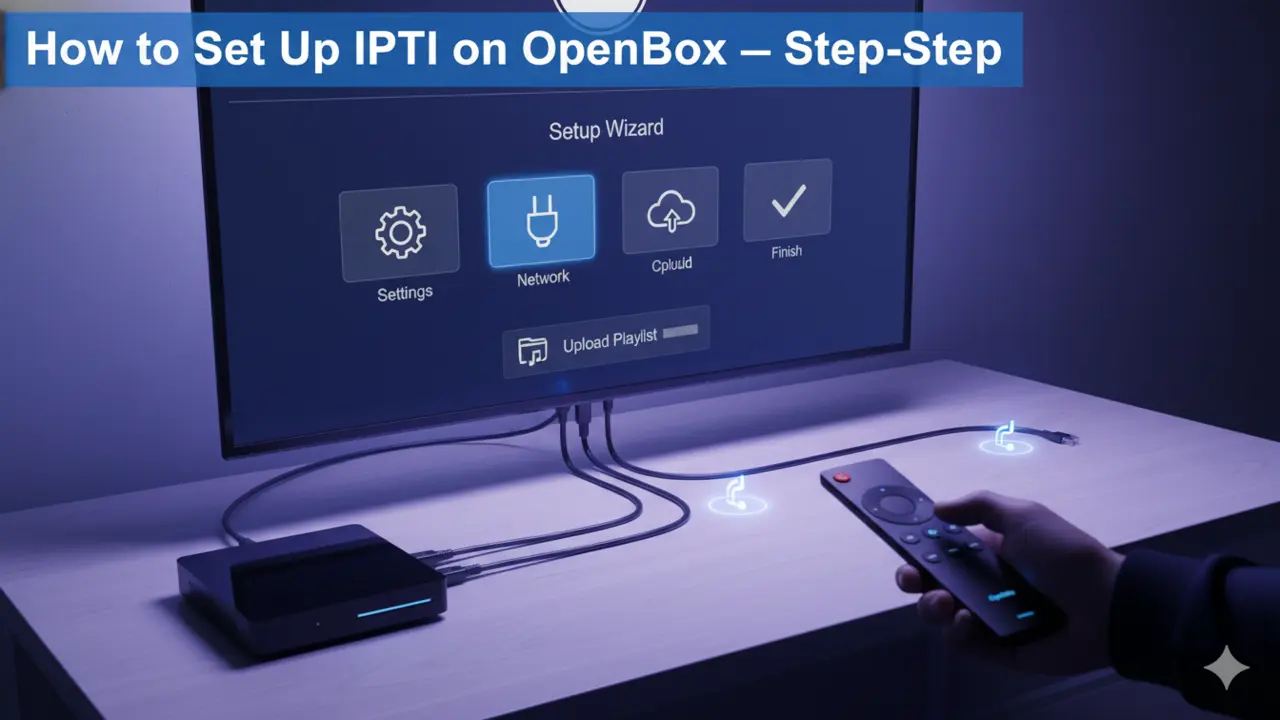
Set Up IPTV on OpenBox Step-by-Step
If you’ve been wondering how to set up IPTV on OpenBox, you’re in the right place. OpenBox receivers have long been favorites among satellite TV enthusiasts, and now they’re making waves in the IPTV world too. While these boxes were originally designed for traditional satellite feeds, they’ve adapted nicely to handle modern streaming services—though you’ll want to manage your expectations a bit since they weren’t built specifically for heavy IPTV use.



Setting up IPTV on your OpenBox isn’t rocket science, but it does require a few specific steps and the right files. Let’s walk through everything you need to know, from getting your box online to actually watching your favorite channels.
What You’ll Need Before Getting Started
Before diving into the setup process, make sure you’ve got these basics covered. First off, you’ll need an active IPTV subscription from a reputable provider—without this, you won’t have access to any channels. Your subscription should provide you with an M3U playlist file, which is essentially a text file containing links to all your IPTV channels.
You’ll also need a USB flash drive to transfer files to your OpenBox. Make sure it’s formatted and working properly. Finally, your OpenBox needs to be connected to the internet, either through an Ethernet cable plugged directly into your router or via Wi-Fi if your model supports it. A wired connection typically gives you better stability for streaming.
Understanding the OpenBox WebTV App
The built-in IPTV player on OpenBox devices is called WebTV, and it’s your gateway to streaming channels. This app reads M3U playlist files and displays your channels in an organized list. While it’s functional, keep in mind that OpenBox receivers have moderate RAM and processing power, so you might experience occasional freezing or crashes when switching channels.
The WebTV app works best when your M3U file is specifically named “WebTV.m3u”—this naming convention helps the app recognize and read the file properly. If your IPTV provider gives you a file with a different name, you’ll want to rename it before proceeding.
Preparing Your M3U Playlist File
Getting your M3U file ready is actually simpler than it sounds. Once you sign up with an IPTV service provider, they’ll typically provide you with a download link or send you the M3U file directly. This file contains all the channel information and streaming links your OpenBox needs.
Download the M3U file to your computer first, then rename it to “WebTV.m3u” if it’s called something else. Copy this file onto your USB flash drive, making sure it’s at the root level (not buried in folders). The file format should remain as .m3u—don’t accidentally change this extension.
. Fast Tutorial to Set Up IPTV on OpenBox .
This tutorial will guide you through the simple setup instruction for Openbox.
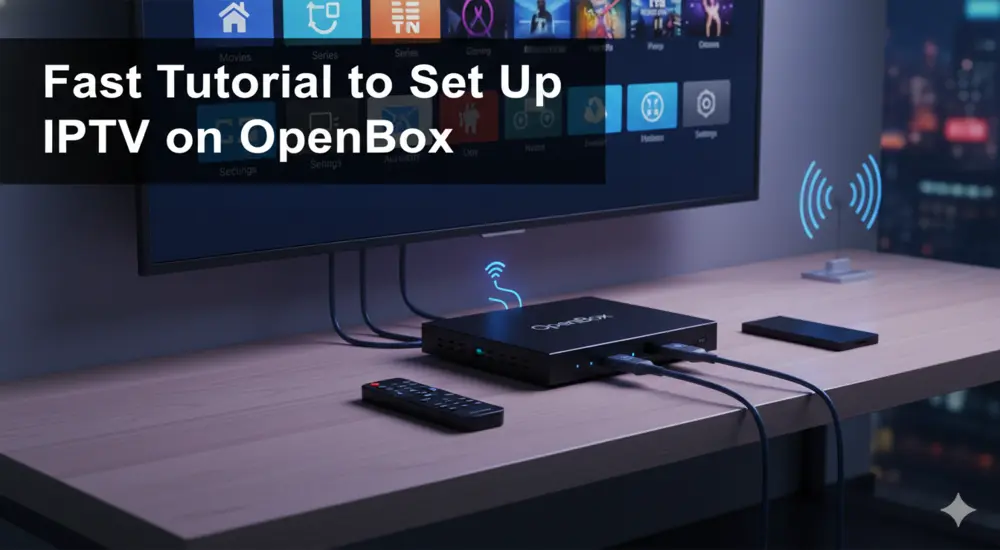
Openbox Setup Instructions:
- Open ‘Intenet Browser’.
- Copy and paste your M3U URL into the ‘Address bar’ and press ‘Enter’.
- It will ask you to either ‘save’ or ‘save as’.
- Choose ‘save as’ and change the file name to ‘IPTV ’.
- Copy the saved file from your computer to a USB stick then put the stick in the Back of the Openbox.
- On the remote press the following:
– MENU
– Network Local settings
– Network App
– IPTV
– Yellow button to read from USB
– Start Watching right after Openbox says ‘success”
Troubleshooting Openbox
If you have any problems viewing the Channels please follow this recommended fix:
Restart your Openbox and Wi-Fi Router.
. Complete Guide to Set Up IPTV on Kodi .
Method 1: Installing IPTV Through the WebTV App
This is the most straightforward way to set up IPTV on OpenBox, and it works for most users. Start by inserting your USB drive containing the WebTV.m3u file into one of your OpenBox’s USB ports.
Grab your remote and press the Menu button. Navigate to the right until you reach the “Multimedia” section. From the list of options, select “WebTV” and press OK. If there are already channels listed in WebTV from previous setups, you’ll want to clear them out first by pressing the green button on your remote—this should show a “Del All” option.
Now comes the magic part. Press the yellow button on your remote, which should display a “Read By USB” option. Select this, and your OpenBox will automatically read the WebTV.m3u file from your USB drive and populate the channel list. The process takes just a few seconds, and once it’s done, you should see all your IPTV channels displayed on screen.
Method 2: Installing IPTV Through Upgrade Menu
If you don’t see the yellow “Read By USB” button in the WebTV app, don’t worry—there’s an alternative method that works just as well. This approach uses the Upgrade menu to manually load your M3U file.
From the main menu, navigate to “Tools” instead of Multimedia. Select “Upgrade By USB” from the options. On the next screen, you’ll need to change the Upgrade Mode setting—look for a dropdown or option that says “Misc Files” and select it.
At the bottom of this screen, you should see “Select & Upgrade”—highlight it and press OK on your remote. A window will pop up showing the files on your USB drive. Look for “WebTV.m3u (Web Stream)” and select it. You’ll know it’s selected when a green tick appears next to it.
Press the yellow button on your remote to start the upgrade process. Your OpenBox will process the file, and when it’s finished, you’ll see a message saying “Upgrade Finished. Press Info Key for Result.” Press the Exit button twice to return to the main menu, then navigate back to Multimedia and open the WebTV app—your channels should now be loaded and ready to watch.
Connecting Your OpenBox to the Internet
Your IPTV subscription won’t work without a solid internet connection. If you’re using an Ethernet cable, simply plug one end into your router and the other into the Ethernet port on your OpenBox. This method usually provides the most stable connection for streaming.
For Wi-Fi connections, you’ll need to access your OpenBox’s network settings through the Menu. Navigate to the network or settings section (this varies slightly by model), scan for available networks, select yours, and enter your Wi-Fi password. Once connected, you can verify the connection status in your network settings.
Troubleshooting Common OpenBox IPTV Issues
Even with everything set up correctly, you might run into a few hiccups. If your channels aren’t loading or the WebTV app keeps crashing, try clearing the app cache first. Go to Settings, find Apps, locate WebTV, and select “Clear Cache” followed by “Clear Data”.
If you’re experiencing freezing or buffering during playback, remember that OpenBox receivers weren’t specifically designed as IPTV powerhouses. Their moderate RAM means they buffer video before playing it, which can sometimes cause performance issues. Restarting both your OpenBox and your Wi-Fi router often helps resolve temporary glitches.
Make sure your M3U file is properly formatted and named correctly as WebTV.m3u. If channels still aren’t appearing, try removing and reinserting your USB drive, or contact your IPTV service provider to verify your subscription is active and the M3U link is current.
Choosing a Reliable IPTV Service
Your viewing experience depends heavily on the quality of your IPTV subscription. Look for providers that offer stable connections, a wide variety of channels, and good customer support. Many services offer 24-hour free trials, which let you test the service before committing to a subscription.
Popular IPTV services in 2025 include providers offering thousands of channels in HD and 4K quality, along with extensive video-on-demand libraries. Make sure your chosen provider gives you an M3U playlist option, as that’s what OpenBox devices work with. Some providers also offer EPG (Electronic Program Guide) data, which makes browsing channels much easier.
Alternative IPTV Apps for OpenBox
While WebTV is the native solution, some OpenBox models support additional IPTV apps depending on their software version. Apps like IPTV Smarters, Perfect Player, and Kodi can sometimes be installed on newer OpenBox Android-based models, though this isn’t standard across all devices.
For most traditional OpenBox satellite receivers like the V8S and V9S, WebTV remains the primary and most reliable option for IPTV playback. These models don’t support app installations the way Android boxes do, so you’re working within the built-in software limitations.
Maximizing Your OpenBox IPTV Experience
To get the best performance from your setup, keep your OpenBox firmware updated to the latest version. Check the manufacturer’s website periodically for firmware updates that might improve IPTV functionality. Organize your channels within the WebTV app by creating favorites lists for easier navigation—most OpenBox remotes have a favorites button for quick access.
Consider the quality of your internet connection too. For smooth HD streaming, you’ll want at least 10-15 Mbps download speeds, while 4K content requires 25 Mbps or higher. Run a speed test to make sure your connection can handle the demands of IPTV streaming.
Legal Considerations and Best Practices
It’s worth mentioning that while IPTV technology itself is completely legal, the legality depends on the content you’re accessing. Stick with legitimate IPTV subscription services that have proper licensing for the content they distribute. Free or suspiciously cheap IPTV services that offer premium channels often operate in legal gray areas.
Reputable IPTV providers will have clear terms of service, customer support channels, and secure payment methods. They should also offer proper documentation and setup guides for various devices including OpenBox receivers.
Maintaining Your OpenBox IPTV Setup
Once everything’s up and running, maintaining your setup is pretty straightforward. Periodically check with your IPTV provider for updated M3U playlist files, as channel lineups and streaming links can change. When you receive an updated file, simply follow the same installation process you used initially—delete the old channels in WebTV, then load the new M3U file from USB.
Keep your USB drive in good condition and create a backup copy of your M3U file on your computer. This way, if your USB drive fails or you need to reset your OpenBox, you won’t have to scramble to find your playlist file again.